Tech · US · comparison
Laptop Dock vs. USB-C Hub: Which is Right for Your Workflow?
Published May 27, 2026
Disclosure: This page may include affiliate links. We may earn a commission if you buy through them.
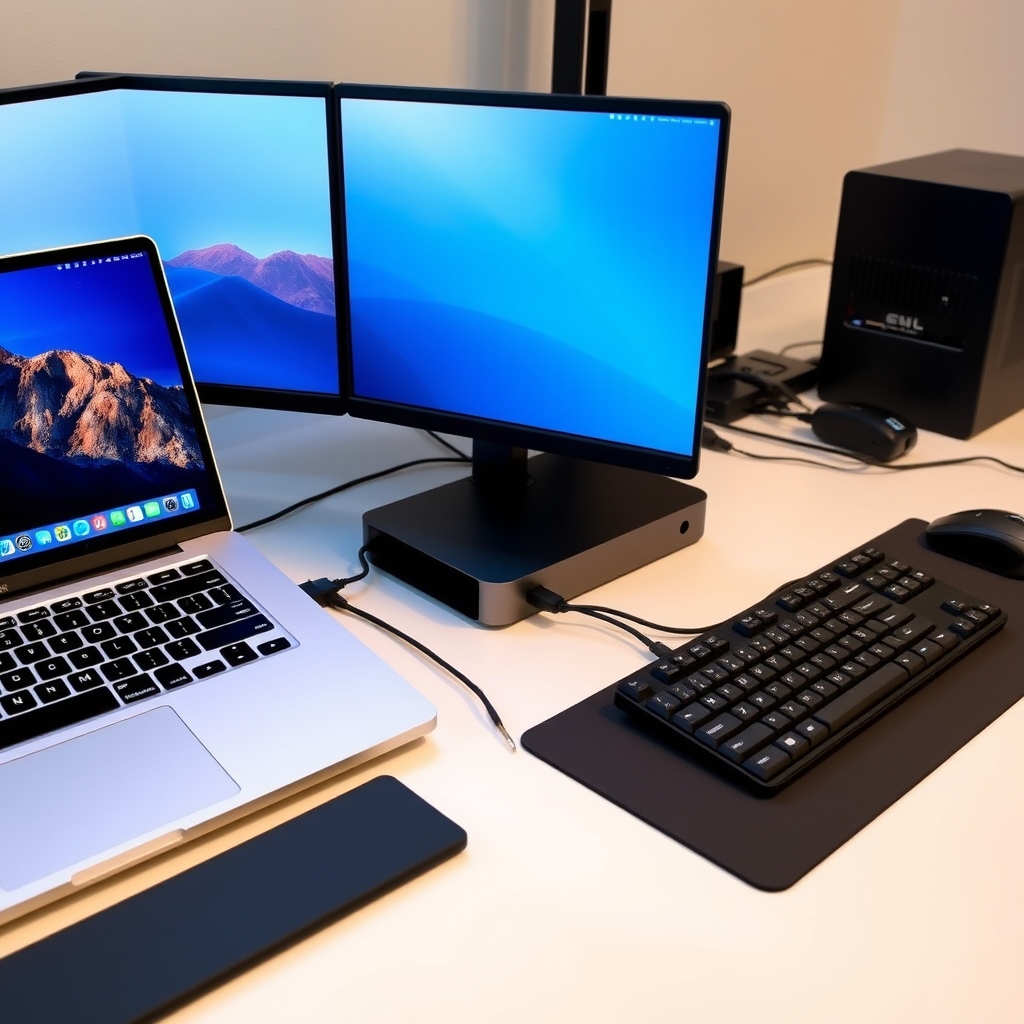
Choosing between a laptop dock and a USB-C hub can feel like navigating a maze of ports and power. Both aim to expand your laptop’s connectivity, but they cater to different needs and budgets. This guide will help you decide which is the best fit for your workflow by examining their port selection, power delivery, and ideal use cases. We’ll focus on helping you make an informed decision based on your specific requirements, ensuring you get the most out of your setup.
How We Compared
Our comparison focuses on the following key criteria:
- Port Selection: The variety and type of ports offered (USB-A, USB-C, HDMI, DisplayPort, Ethernet, SD card readers, etc.).
- Power Delivery (PD): The wattage available to charge your laptop and power connected peripherals.
- Connectivity Standards: Support for technologies like Thunderbolt 3/4, DisplayPort Alternate Mode, and USB 3.2.
- Form Factor & Portability: Size, weight, and ease of transport.
- Price Tier: General cost expectations.
- Target Use Case: Whether it’s for a permanent desk setup or on-the-go needs.
- Learning Curve: Ease of setup and use.
- Caveat: Any significant limitations or trade-offs.
Comparison Table
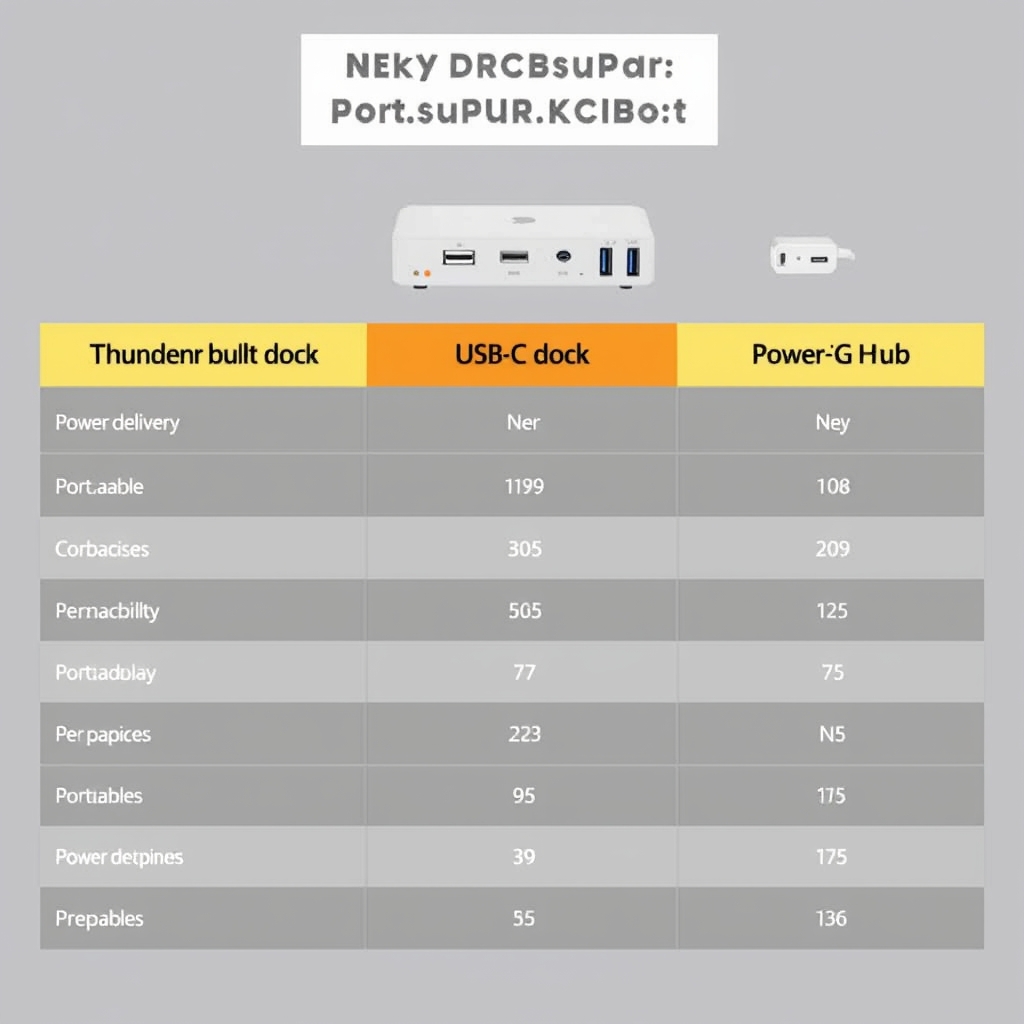
| Option | Best For | Price Tier | Key Tradeoff | Dealbreaker |
|---|---|---|---|---|
| Thunderbolt Dock | Power users needing maximum bandwidth and multiple high-res displays | $$$$ | Cost, requires Thunderbolt port | Not compatible with non-Thunderbolt laptops |
| USB-C Dock | Versatile desk setups with multiple peripherals and displays | $$$ | Can be complex to find the right one, requires USB-C Alt Mode | Limited bandwidth compared to Thunderbolt |
| USB-C Hub | Portability and essential connectivity expansion | $$ | Limited ports, lower power delivery | Insufficient ports for complex setups |
| Basic USB Hub | Adding a few extra USB-A ports | $ | Very limited functionality, no video out | No video or high-speed data ports |
Thunderbolt Dock
For professionals who demand the absolute best in performance and connectivity, a Thunderbolt dock is often the ultimate solution. These devices leverage the immense bandwidth of Thunderbolt 3 or 4 (up to 40Gbps) to support multiple high-resolution displays (often at 4K or higher), high-speed external storage, and a plethora of peripherals simultaneously, all through a single cable. They are ideal for content creators, developers, and anyone running demanding applications that benefit from fast data transfer and extensive display real estate. A concrete use case would be a video editor connecting two 4K monitors, a fast external SSD array, a Gigabit Ethernet connection, and their keyboard/mouse, all while charging their laptop, with just one Thunderbolt cable.
However, the primary drawback is cost; Thunderbolt docks are the most expensive option. Furthermore, they require a laptop equipped with a Thunderbolt 3 or 4 port, which is typically found on higher-end Windows laptops and some MacBooks. If your laptop lacks this specific port, a Thunderbolt dock will not function, making it a non-starter for many users. The sheer number of ports can also be overwhelming if you only need a few extra connections.
USB-C Dock
USB-C docks offer a compelling middle ground, providing a significant expansion of ports and capabilities without the premium price tag or strict port requirements of Thunderbolt docks. These devices typically connect via a standard USB-C port that supports DisplayPort Alternate Mode (DP Alt Mode) and USB Power Delivery. This allows them to drive one or two external displays, connect to wired networks via Ethernet, and offer a range of USB-A and USB-C ports for peripherals, along with SD card readers. They are excellent for creating a more permanent, clutter-free desk setup where you frequently connect and disconnect your laptop.
Where USB-C docks can struggle is in their bandwidth limitations compared to Thunderbolt. While they can support 4K displays, running multiple high-resolution monitors at high refresh rates or simultaneously transferring large files to external storage might lead to performance compromises. It’s also crucial to check the specifications carefully, as not all USB-C ports on laptops support DP Alt Mode, and the power delivery wattage can vary significantly. A good use case is a graphic designer who needs to connect a 4K monitor, a drawing tablet, a USB mouse, and a wired internet connection to their laptop, all while ensuring their laptop stays charged during long work sessions.
USB-C Hub
USB-C hubs are the most portable and often the most affordable way to add essential connectivity to your laptop. These compact devices typically plug directly into a single USB-C port and offer a limited selection of commonly needed ports, such as a couple of USB-A ports for older peripherals, an HDMI or DisplayPort output for a single external monitor, and sometimes an SD card reader or an Ethernet port. They are designed for users who need to supplement their laptop’s built-in ports for occasional use or when travelling. Think of them as a portable adapter that bridges the gap between your modern laptop and legacy devices or external displays.
Their main limitation is the restricted number and type of ports. You won’t find the extensive array of connections on a hub that you would on a full dock. Power delivery is also often an afterthought; while some hubs support charging your laptop, it’s usually at lower wattages, and they may not be able to power multiple demanding peripherals simultaneously. A practical scenario is a student who needs to connect their laptop to a projector for a presentation, transfer files from a USB drive, and use a wired mouse, all while on the move.
Basic USB Hub
For the absolute simplest expansion needs, a basic USB hub is the way to go. These devices typically connect via a USB-A or USB-C port and primarily serve to increase the number of available USB-A ports. They are perfect for users who find themselves short on USB-A ports for essential peripherals like keyboards, mice, webcams, or external hard drives, and don’t require video output or high-speed data transfer beyond standard USB 2.0 or 3.0 speeds. They are incredibly affordable and plug-and-play, requiring no special drivers or configurations.
However, their functionality is extremely limited. They do not offer any video output capabilities, meaning you cannot connect external monitors through them. Furthermore, if you’re using older USB 2.0 hubs, data transfer speeds will be significantly slower than modern standards. They also typically don’t offer any power delivery to the host laptop. A common use case is a home user who has a desktop PC or an older laptop with few USB-A ports and needs to connect a keyboard, mouse, and a printer simultaneously.
Quick Picks by Scenario
- Ultimate Desk Setup: Thunderbolt Dock
- Versatile Home/Office Workstation: USB-C Dock
- Frequent Traveller Needing Essential Ports: USB-C Hub
- Just Need More USB-A Ports: Basic USB Hub
Who Should Skip This Comparison
- Users with only USB-A ports: If your laptop only has USB-A ports and no USB-C, you’ll need a USB-A hub or adapter, not a USB-C dock or hub. However, many modern laptops are phasing out USB-A in favour of USB-C. Check your laptop’s ports.
- Users needing specific legacy ports: If you require connections like VGA, DVI, or dedicated audio jacks that aren’t commonly found on modern docks or hubs, you might need a specialised adapter or a dock from a few years ago.
FAQ
Q: Can a USB-C hub charge my laptop? A: Some USB-C hubs support USB Power Delivery (PD) and can charge your laptop, but the wattage varies. Always check the hub’s specifications and ensure it meets your laptop’s charging requirements. You may need a higher-wattage hub or a separate charger for demanding laptops.
Q: What’s the difference between a USB-C hub and a dock? A: Generally, docks are larger, offer more ports (including multiple video outputs and higher bandwidth options like Thunderbolt), and are designed for permanent desk setups. Hubs are smaller, more portable, and offer fewer, more basic connections.
Q: Do I need a Thunderbolt port for a Thunderbolt dock? A: Yes, absolutely. Thunderbolt docks require a laptop with a Thunderbolt 3 or Thunderbolt 4 port to function at their full speed and capability. A standard USB-C port will not work with a Thunderbolt dock.
Q: How many external monitors can I connect? A: This depends entirely on the dock or hub and your laptop’s capabilities. Thunderbolt docks can often support multiple high-resolution displays. USB-C docks typically support one or two, depending on DP Alt Mode support. USB-C hubs usually support only one external display.
Q: Are all USB-C ports the same? A: No. While they use the same connector, USB-C ports can support different features like DisplayPort Alternate Mode (for video output), Thunderbolt 3/4, and varying USB data speeds. Always check your laptop’s specifications.
Conclusion
Ultimately, the choice between a laptop dock and a USB-C hub hinges on your specific needs for connectivity, display support, and power. For a robust, permanent desk setup demanding high performance and multiple peripherals, a Thunderbolt Dock or a capable USB-C Dock is likely your best bet. If portability and essential connections are your priority, a compact USB-C Hub will serve you well. For those simply needing more USB-A ports, a Basic USB Hub is the most straightforward solution. Consider your primary use case – whether it’s a powerful workstation or a mobile setup – to make the right choice for enhanced productivity.
Laptop Docks vs. USB-C Hubs: Key Differences
Amazon
Shop noise cancelling earbuds on Amazon
noise cancelling earbuds
Open offerAmazon
Shop bluetooth headphones on Amazon
bluetooth headphones
Open offerAmazon
Shop wireless earbuds on Amazon
wireless earbuds
Open offerWho Should Choose a Thunderbolt Dock?
Ideal for power users, content creators, and developers who require maximum bandwidth for multiple high-resolution displays, fast data transfers, and extensive peripheral support.
Who Should Choose a USB-C Dock?
Suitable for users needing a versatile desk setup with expanded connectivity for multiple peripherals and displays, offering a balance of features and cost.
Who Should Choose a USB-C Hub?
Perfect for users prioritizing portability and essential connectivity expansion, such as adding a few extra ports or connecting to a single external display on the go.
Exploring Laptop Connectivity Options
Learn about different ways to expand your laptop's capabilities, including dedicated docks, versatile hubs, and basic port expanders.
Visual Summary