Tech · US · howto
How to Use Your iPad as a Second Monitor
Published May 27, 2026
Disclosure: This page may include affiliate links. We may earn a commission if you buy through them.
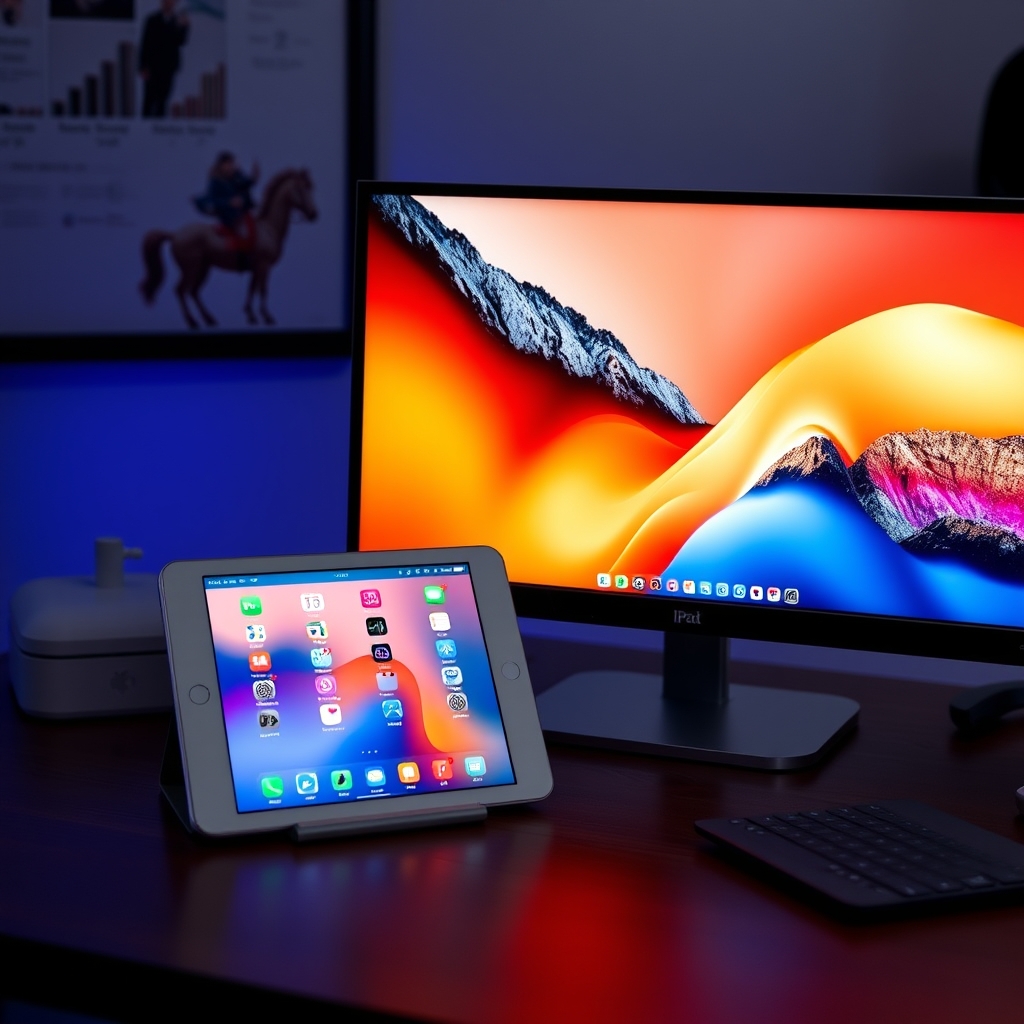
Transform your workflow by extending your computer’s display to your iPad. This guide will show you how to set up your iPad as a second monitor, enhancing productivity and providing a flexible workspace. You’ll be up and running in under an hour with this simple setup. The difficulty is easy, requiring no specialized tools.
Before You Start
Skills: Basic computer literacy (navigating operating systems, connecting devices).
Tools:
- A Mac computer (for Sidecar) or a Windows/Mac computer (for third-party apps).
- Your iPad.
- A USB cable (Lightning or USB-C, depending on your iPad model) for initial setup or wired connection.
Materials:
- Your iPad must be running iPadOS 13 or later. For Sidecar, your Mac must be running macOS Catalina or later.
- Ensure both your Mac and iPad are signed into the same Apple ID with two-factor authentication enabled.
Accounts: An Apple ID is required for Sidecar.
Estimated Time
Total Time: 30-60 minutes
Pace: Assumes a relaxed pace, allowing time to read instructions and perform each step carefully.
Method 1: Using macOS Sidecar (Mac Users Only)
Sidecar is Apple’s built-in solution for using an iPad as a second display. It offers a seamless experience for Mac users, allowing for wireless or wired connections and even Apple Pencil support for drawing applications.
Step 1: Check Compatibility
Before proceeding, verify that your Mac and iPad meet Sidecar’s requirements. For Macs, this generally includes models from 2016 or later running macOS Catalina (10.15) or newer. iPads need to be running iPadOS 13 or later. Both devices must be signed into the same Apple ID with two-factor authentication enabled and be within Bluetooth and Wi-Fi range of each other. If you’re unsure about your Mac’s compatibility, check Apple’s official support documentation.
Why this matters: Using unsupported hardware can lead to connection issues or prevent Sidecar from working altogether, causing frustration and wasted time.
Step 2: Connect Your Devices Wirelessly or Wired
For a wireless connection, ensure both your Mac and iPad are connected to the same Wi-Fi network and have Bluetooth enabled. For a wired connection, use a compatible USB cable to connect your iPad to your Mac. A wired connection often provides a more stable experience and can also charge your iPad simultaneously.
Common mistake: Forgetting to ensure both devices are on the same Wi-Fi network. This is a frequent reason for wireless connection failures.
Step 3: Enable Sidecar on Your Mac
On your Mac, go to System Settings (or System Preferences on older macOS versions) and click on Displays. You should see an option to “Add Display” or a similar prompt. Click on it, and your iPad should appear in the list of available devices. Select your iPad to initiate the connection.
Why this matters: This is the primary command center for initiating the Sidecar connection. Without this step, your Mac won’t recognize your iPad as an extended display.
Step 4: Configure Display Settings
Once connected, your iPad will mirror your Mac’s display or extend it. You can choose how you want your iPad to function as a second monitor. In System Settings > Displays, you can arrange the display layout by dragging the icons representing your Mac’s display and your iPad. You can also choose whether to mirror or extend your display. For extending, ensure your iPad is positioned logically relative to your Mac’s screen.
Why this matters: Proper display arrangement ensures your mouse cursor moves intuitively between screens, preventing confusion and improving workflow efficiency.
Step 5: Utilize Touch Bar and Gestures (Optional)
Sidecar allows you to display your Mac’s Touch Bar on your iPad’s screen, even if your Mac doesn’t have one. You can also enable hand gestures for common actions. These options can be found within the Sidecar settings in System Settings > Displays when your iPad is connected. You can toggle the Touch Bar and hand gestures on or off based on your preference and workflow needs.
Why this matters: These features enhance interactivity, making your iPad feel like a true extension of your Mac, especially useful for creative applications or shortcuts.
Method 2: Using Third-Party Apps (Windows & Mac Users)
If you’re using a Windows PC or an older Mac that doesn’t support Sidecar, third-party applications offer a viable alternative. These apps typically work over Wi-Fi or a wired USB connection and often provide similar functionality to Sidecar.
Step 6: Choose and Install a Third-Party App
Several reputable apps are available, such as Duet Display, Luna Display, and Spacedesk. Duet Display is a popular choice known for its reliability and features, though it requires a one-time purchase. Spacedesk offers a free version. Download and install the chosen application on both your computer and your iPad. Follow the specific installation instructions provided by the app developer.
Why this matters: Selecting a well-regarded app ensures better performance, fewer bugs, and a more stable connection compared to less established options.
Step 7: Connect Your Devices via the App
Launch the app on both your computer and your iPad. Ensure both devices are on the same Wi-Fi network for wireless connection, or connect them via USB if the app supports it and you prefer a wired setup. The app will typically detect the other device automatically, or you may need to manually select it from a list within the application interface. Follow the on-screen prompts to establish the connection.
Common mistake: Not having both devices on the same network. This is crucial for wireless connections and a common oversight.
Step 8: Configure Display Settings in the App
Once connected, the app will usually prompt you to configure display settings. This might involve choosing whether to mirror or extend your display, adjusting resolution, and selecting the refresh rate. Similar to Sidecar, you can arrange the display order in your computer’s display settings to ensure smooth cursor movement between your main screen and your iPad.
Why this matters: Optimizing these settings ensures a smooth visual experience, minimizing lag and maximizing the usability of your iPad as a second monitor.
Tips for Optimizing Your Second Screen Experience
- Adjust Resolution: Experiment with different resolutions in your computer’s display settings to find the best balance between sharpness and performance for your iPad.
- Use as a Dedicated Task Space: Assign specific applications or tasks to your iPad screen. For example, use it for communication apps (Slack, email), reference materials, or creative tools while keeping your main work on your primary monitor.
- Leverage Apple Pencil: If using Sidecar or an app that supports it, the Apple Pencil can turn your iPad into a powerful drawing tablet for graphic design or note-taking.
- Optimize Wi-Fi: For wireless connections, ensure you have a strong and stable Wi-Fi signal. Consider using the 5GHz band if available and ensure your router is not overloaded.
Troubleshooting
iPad Not Appearing in Sidecar/App List
- Fix: Ensure both devices are on the same Wi-Fi network and Bluetooth is enabled. For Sidecar, verify you’re logged into the same Apple ID with two-factor authentication on both devices. Restart both your Mac and iPad. Check for software updates on both devices.
Lag or Stuttering Performance
- Fix: For wireless connections, try moving closer to your Wi-Fi router or use a wired USB connection. Reduce the resolution or refresh rate in the display settings. Close unnecessary applications on both your computer and iPad to free up resources. Ensure your computer meets the minimum system requirements for the app or Sidecar.
Display is Blurry or Incorrectly Sized
- Fix: Adjust the resolution settings in your computer’s display preferences. Ensure you haven’t accidentally enabled display scaling that reduces clarity. Some third-party apps have their own resolution or scaling options within their settings.
Touch Bar Not Appearing (Sidecar)
- Fix: Go to System Settings > Displays, select your iPad, and ensure the “Show Touch Bar” option is checked. If it still doesn’t appear, try disconnecting and reconnecting your iPad.
Safety and Cautions
This setup process does not involve any inherent safety risks. However, always ensure your devices are adequately charged or connected to power to prevent unexpected shutdowns during the setup or use. When using USB cables, avoid excessive bending or stress on the connectors to prevent damage.
Frequently Asked Questions
Q1: Can I use my iPad as a second monitor with any Windows PC?
A1: Yes, using third-party apps like Duet Display or Spacedesk allows you to use your iPad as a second monitor with Windows PCs. Sidecar is exclusive to Macs.
Q2: Does using my iPad as a second monitor drain the battery quickly?
A2: Yes, it can significantly drain the battery, especially with wireless connections. It’s recommended to keep your iPad plugged in or connected via USB while using it as a second monitor for extended periods.
Q3: Is there a noticeable delay when using my iPad as a second monitor?
A3: With a strong Wi-Fi connection or a wired USB connection, the delay (latency) is usually minimal and often imperceptible for most tasks. However, demanding applications or a weak network can introduce noticeable lag.
Q4: Can I use my Apple Pencil with my iPad as a second monitor?
A4: Yes, if you are using macOS Sidecar or a third-party app that specifically supports Apple Pencil input, you can use it for drawing, annotating, or navigating.
Conclusion
Setting up your iPad as a second monitor is a powerful way to boost your productivity and create a more versatile workspace. Whether you’re using macOS Sidecar or a third-party application, you’ve now successfully extended your computer’s display. Consider exploring advanced display arrangements or using your iPad for specialized creative tasks next.
Continue With Buyer-Fit Guides
Send readers from informational content into the most relevant commercial follow-up pages.
Editor Picks
Amazon
Shop noise cancelling earbuds on Amazon
noise cancelling earbuds
Open offerAmazon
Shop bluetooth headphones on Amazon
bluetooth headphones
Open offerAmazon
Shop wireless earbuds on Amazon
wireless earbuds
Open offerVisual Summary